Start a Funeral Design on Your Phone, Finish on Your Laptop
By FuneralPress Product Guides · 4 min read · Checked 09/10/2026
The quick answer
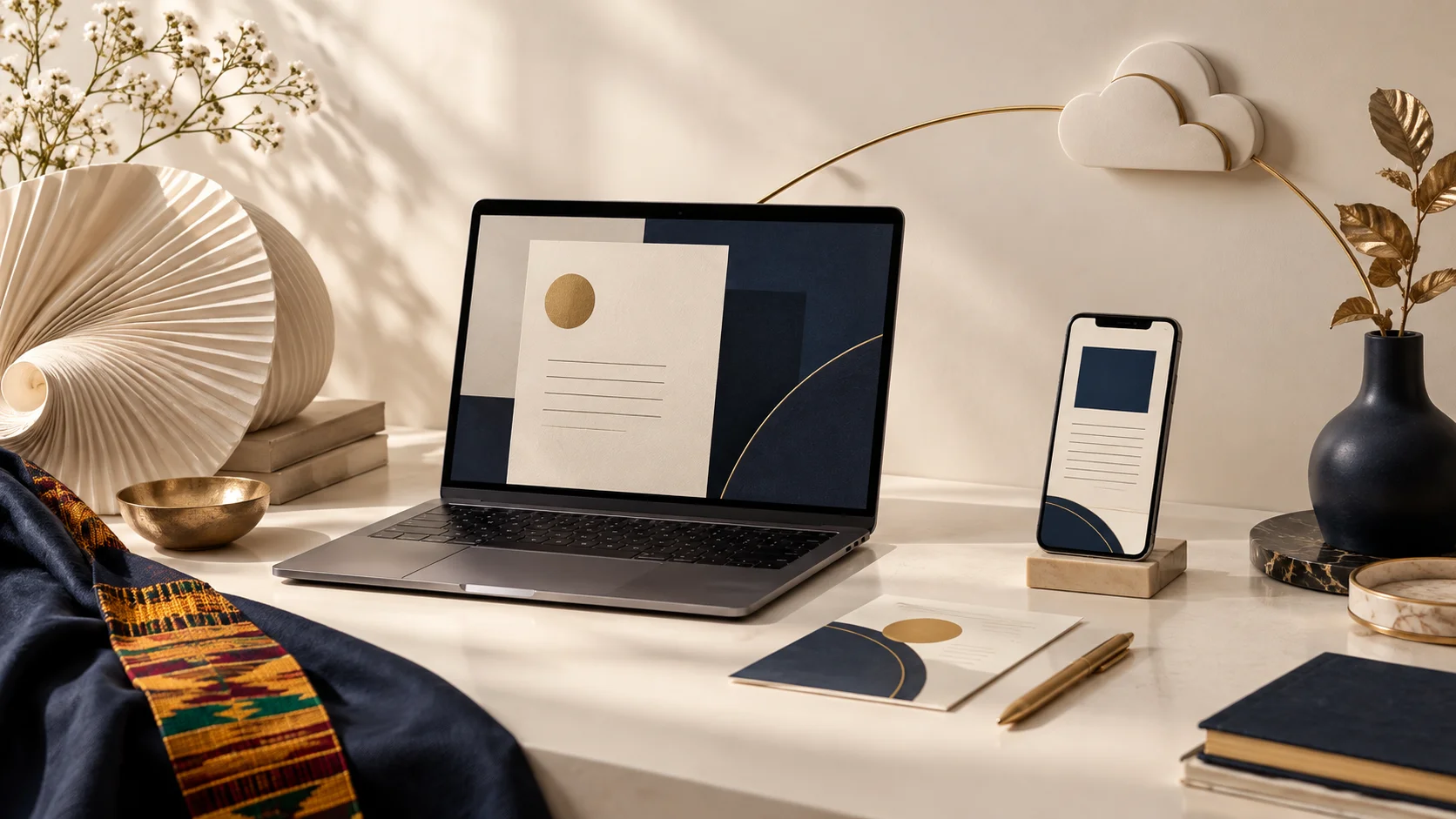
To continue a family collection on another device, sign in, apply your brief and select “Save project to cloud”. On the other device, use the same account, open Family Collection and select the saved project. Browser autosave alone does not transfer the project.
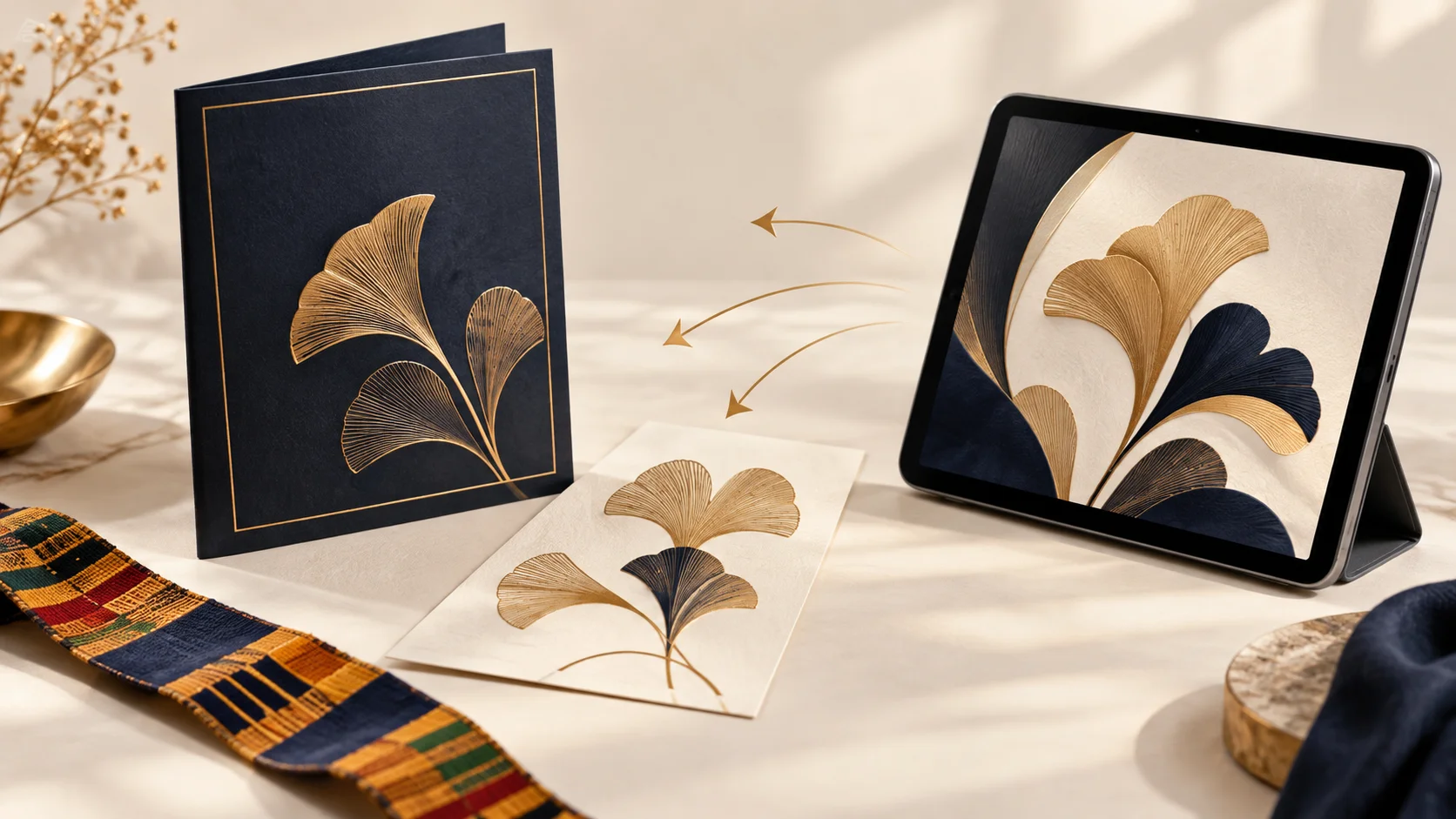
A phone is convenient when a relative sends the portrait. A laptop is often easier for checking a long biography and programme. You can use both without beginning again, provided you save the collection to your account before changing devices.
Browser saving and cloud saving are different
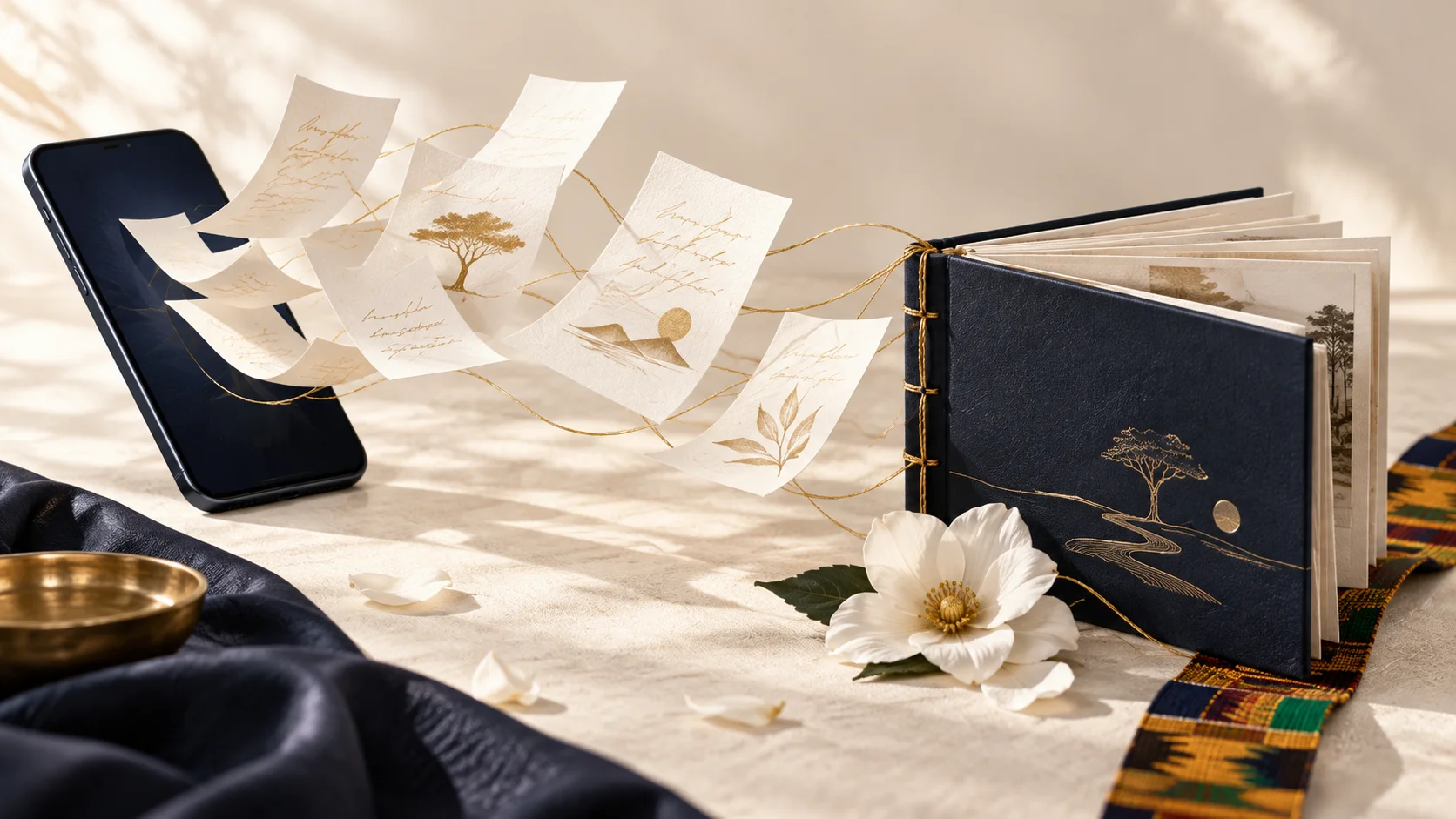
A local draft helps you return to your work in the same browser. A cloud family project stores the shared brief and seven linked drafts in your signed-in account. The collection’s “Save project to cloud” action is the step to use before moving from a phone to a laptop, changing browsers or handing the project back to its owner.
Choose one account to own the project and keep its sign-in private. Cross-device access means the same account can resume the project; it is not a live multiplayer editor or an invitation for every family member to share a password.
How to save the project on your first device
- Sign in to FuneralPress with the account that will own the family project.
- Create your matching drafts in Family Collection. If the brief has changed, review and apply the changes first.
- Finish the relevant editor work, then return to the collection workspace.
- Enter a recognisable project name under the cloud-project controls.
- Select “Save project to cloud” and wait for the confirmation that your brief and seven drafts are saved.
How to reopen it on the second device
- Visit FuneralPress on the second device and sign in to the same account.
- Open Family Collection. Use “Refresh cloud projects” if the latest project is not listed.
- Find the correct project name and select “Open project”.
- Read the replacement notice. Save any current project you want to keep before confirming.
- Select “Open saved project”, then open the linked editor you want to continue.
Opening a project restores its saved brief and matching drafts on that browser. It can replace local versions of those same linked drafts. Other designs stay saved, but you should not treat opening an older cloud copy as a harmless preview of your current unsaved work.
Avoid two devices editing different versions
Finish and save on one device before switching to the other. If a newer project version is detected, review the current cloud copy instead of repeatedly trying to force your older version over it. “Save as a new project” is available when you deliberately want a separate project copy; name it clearly so it is not mistaken for the approved version.
A simple routine is: edit, check, save, then switch. Before final downloads, nominate the device holding the latest approved version. This is particularly helpful when a family organiser in Ghana is coordinating materials from abroad.
If the project does not appear
- Check you signed in to the same account, not a second Google account.
- Confirm the first device showed a successful cloud-save message.
- Refresh the cloud-project list and check your internet connection.
- If the save button is disabled, review and apply pending shared-brief changes.
- Keep local work intact while investigating. A failed save is not a reason to delete the draft or pay again.
Cloud save and restore require a connection. Retain downloaded files and use the editors’ backup options for important work. A proof you previously viewed may be available from a browser cache, but a new render or cross-device restore still needs internet access.
Common questions
Can relatives edit the same project simultaneously?
The cloud-project feature saves and restores versions under the owner’s account. It is not a simultaneous collaborative editor. Relatives can submit tributes through a separate contribution link.
Do I need to pay again on my laptop?
Signing in on another device does not itself require another design purchase. Existing paid access is checked against the same account and unlocked design.
Will an unsaved phone edit appear on my laptop?
Only the latest successfully saved cloud version is restored. Save your phone changes to cloud before switching devices.